Appearance
Connect it
In the setup guide
- On Connect printer, press Connect.
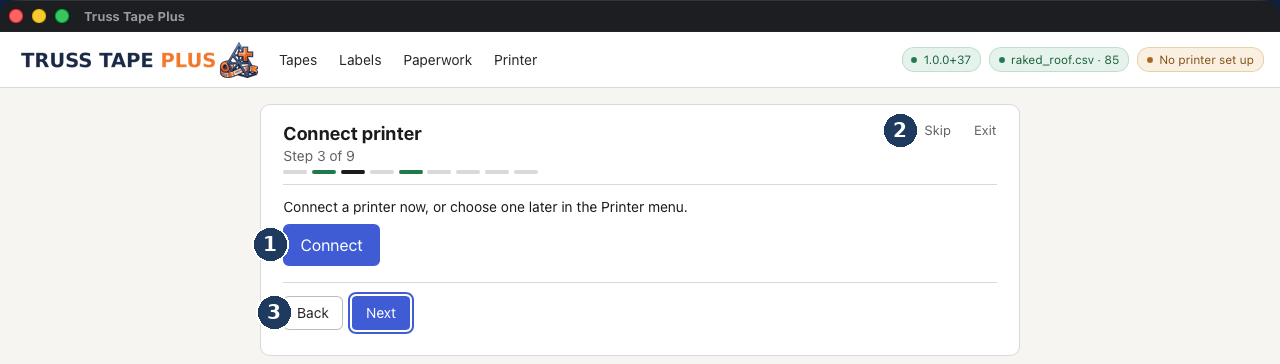
| 1 | Connect — start the scan |
| 2 | Skip / Exit — leave setup and come back later |
| 3 | Back / Next — move through the guide |
INFO
Nothing prints until you press a print button. Connecting a printer only sets which one the app will use.
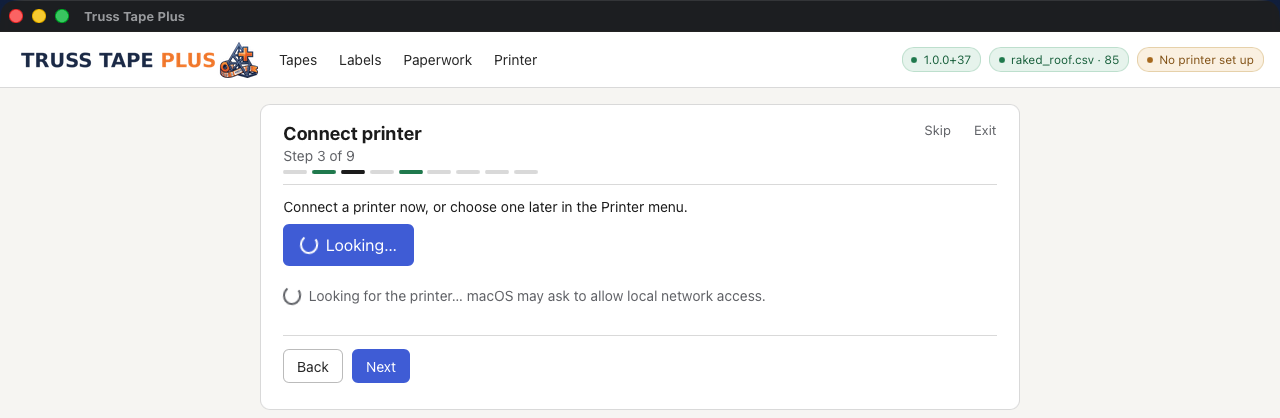
- Wait while it looks. macOS may ask to allow local network access — allow it so the scan can see the Wi-Fi / local network.
- Pick the printer you want. Press Use this printer.
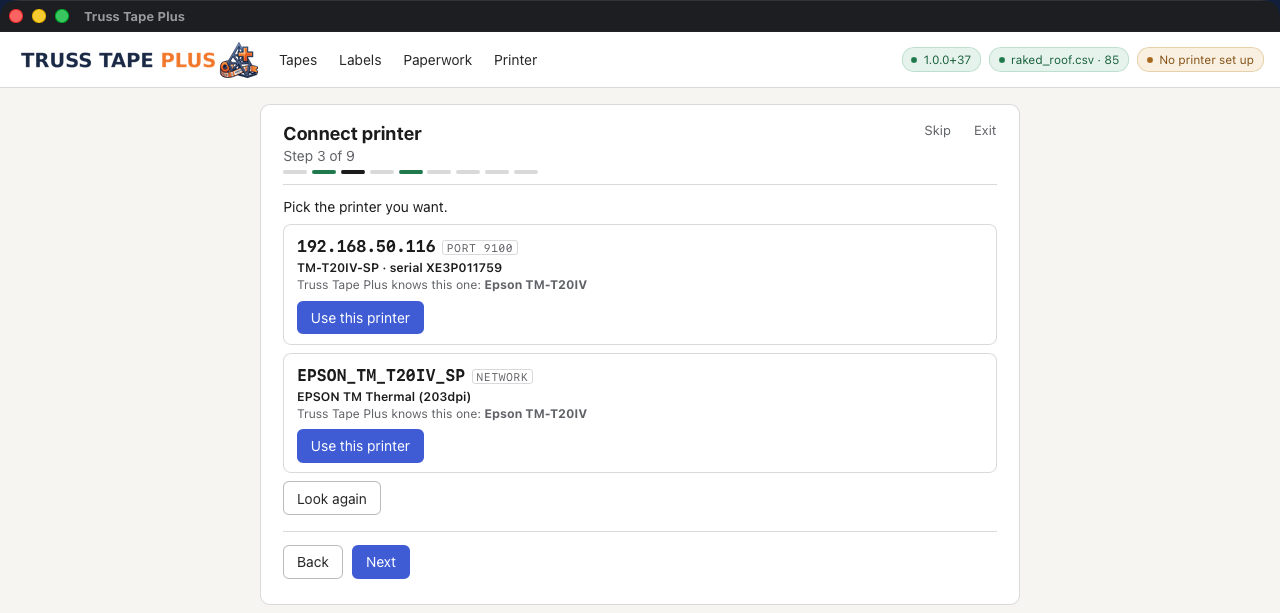
The same scan lists hang-tape and label printers together — the list shows which family each one is. See Which printer.
From Printer anytime
Open Printer and press Find printers.
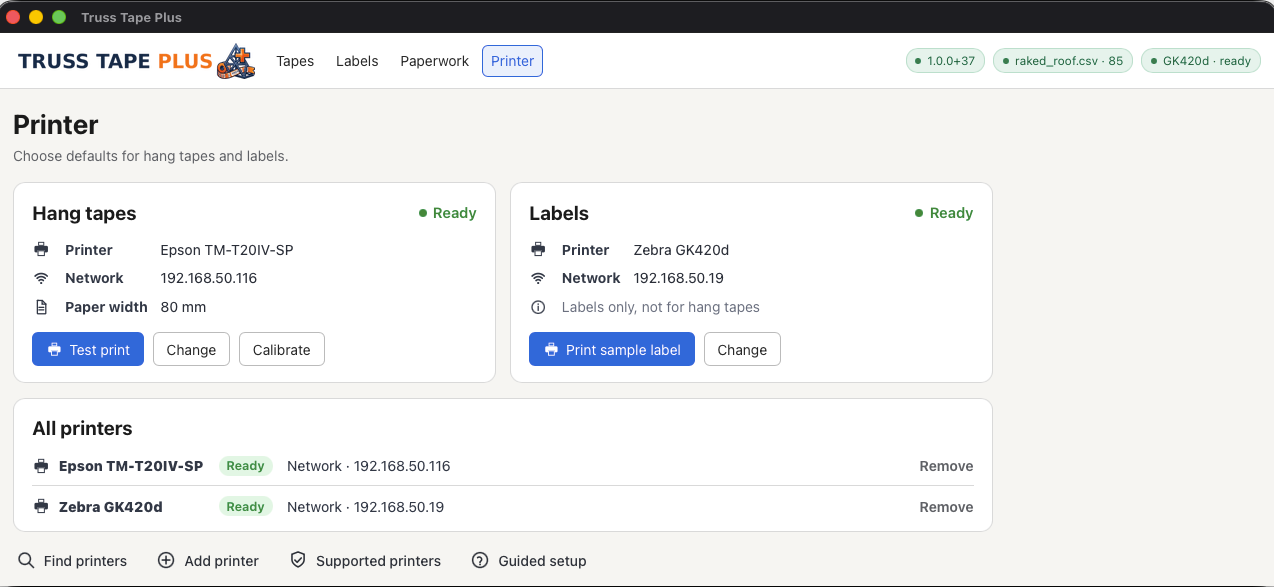
- Pick the printer you want.
- Press Use this printer.
If the page says this printer is not for truss tapes, it can still print labels. A hang tape needs a printer from Truss Tape Printers.
Nothing answered?
- Press Add printer.
- Type the printer’s address.
- Leave the port at 9100.
- Press Connect.
Browse… is for a USB printer plugged into this Mac (or a share already on this computer). Do not type that computer’s address into the 9100 box.
An iPhone or iPad looks for a printer on Wi-Fi. It cannot use a printer that is only shared from a Mac or a PC.
If nothing shows up
- Mac and printer on the same Wi-Fi / local network.
- When macOS asks for local network permission, allow it.
- Hang tape needs a printer from Truss Tape Printers; labels use Label Printers.
- Still empty? Add printer, type the address, port 9100 — or Browse… for USB on this Mac.