Appearance
First-run setup overview
The first time Truss Tape Plus opens, the setup guide runs. It takes about ten minutes. Nothing prints until you press a print button.
You can leave anytime with Skip or Exit. Come back later from File → Get started, or from the Printer page.
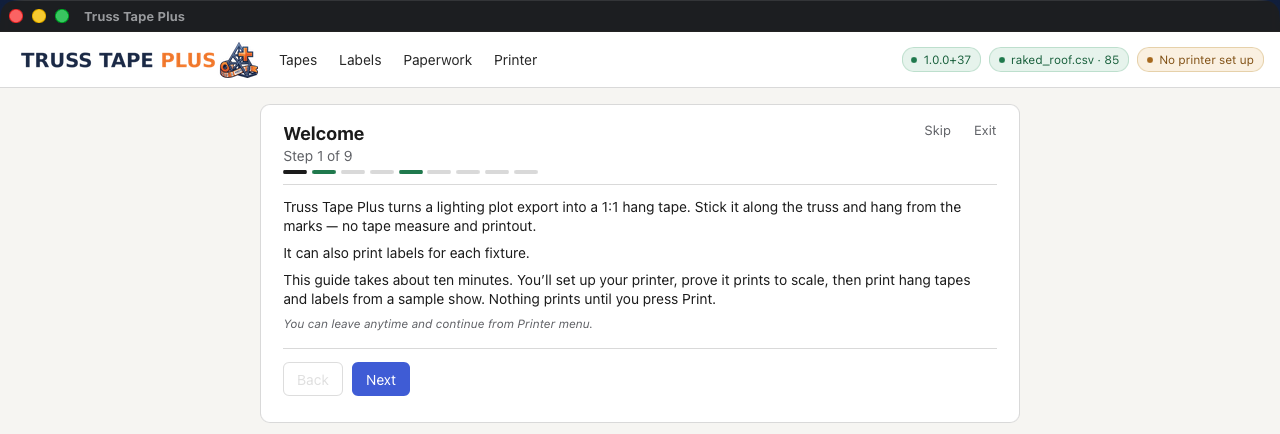
On a Mac the steps run in this order. One action, then the picture.
1. Welcome
What the app does: 1:1 hang tapes and fixture labels. Press Next.
2. Trial
Press Start trial, or Enter license key and paste the key from your receipt. While a trial is running, Enter license key stays available.
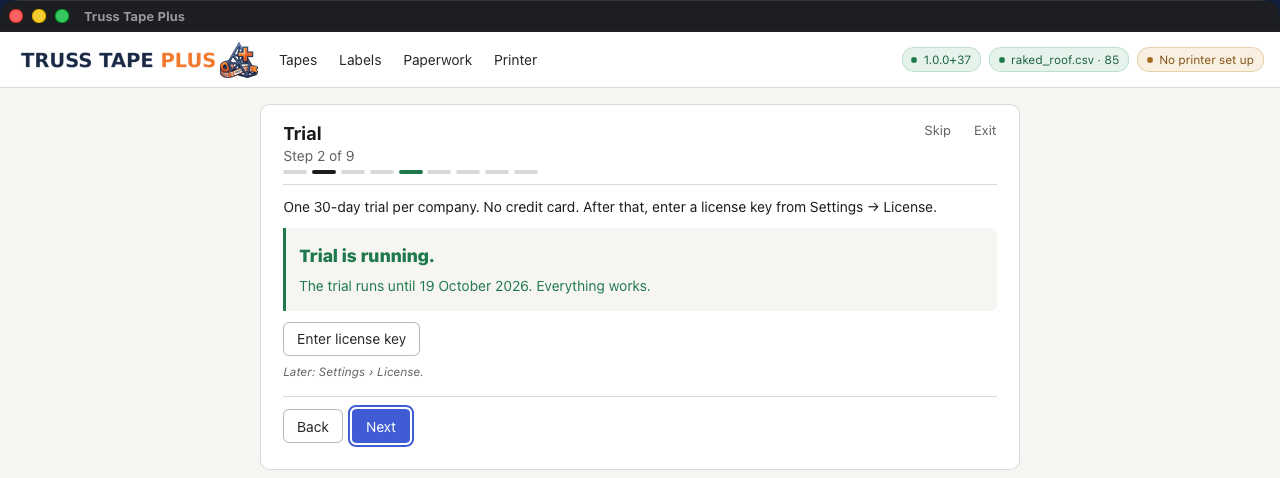
More detail: Start the trial / enter a license key.
3. Connect printer
Press Connect. When the list appears, pick the hang-tape printer and press Use this printer.
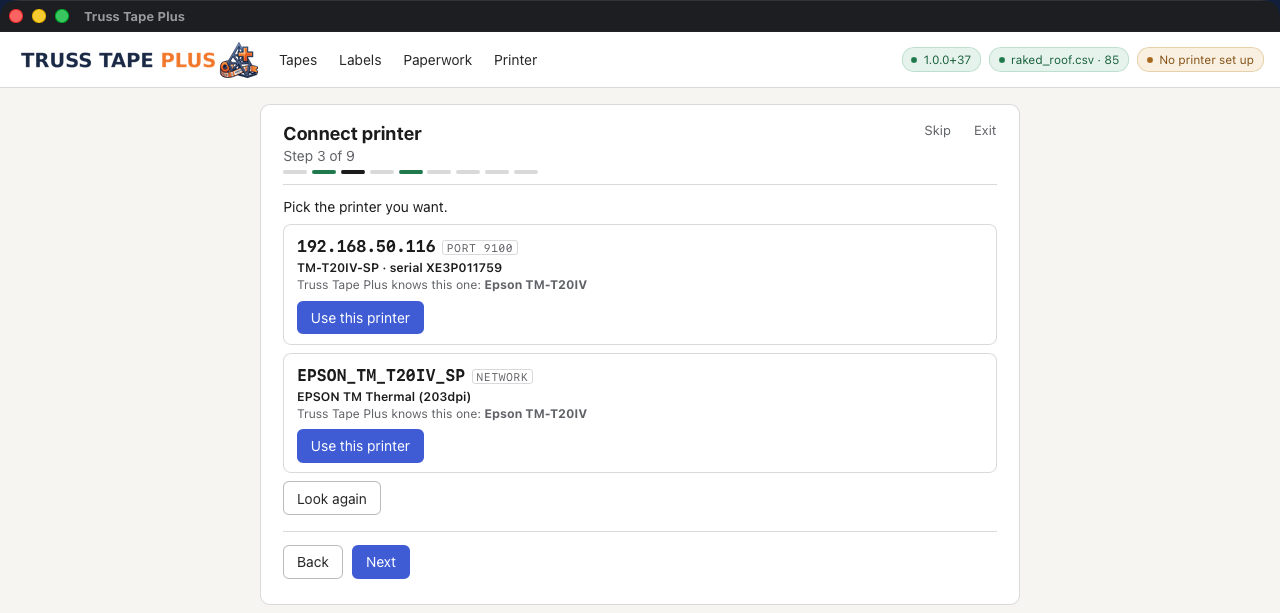
More detail: Connect it.
4. Calibration — make the tape true
Press Print the 3'-0" calibration strip. Measure START to END. If it matches, press 3'-0" — correct. If not, enter feet, inches, and the fraction, name the roll, then Save.
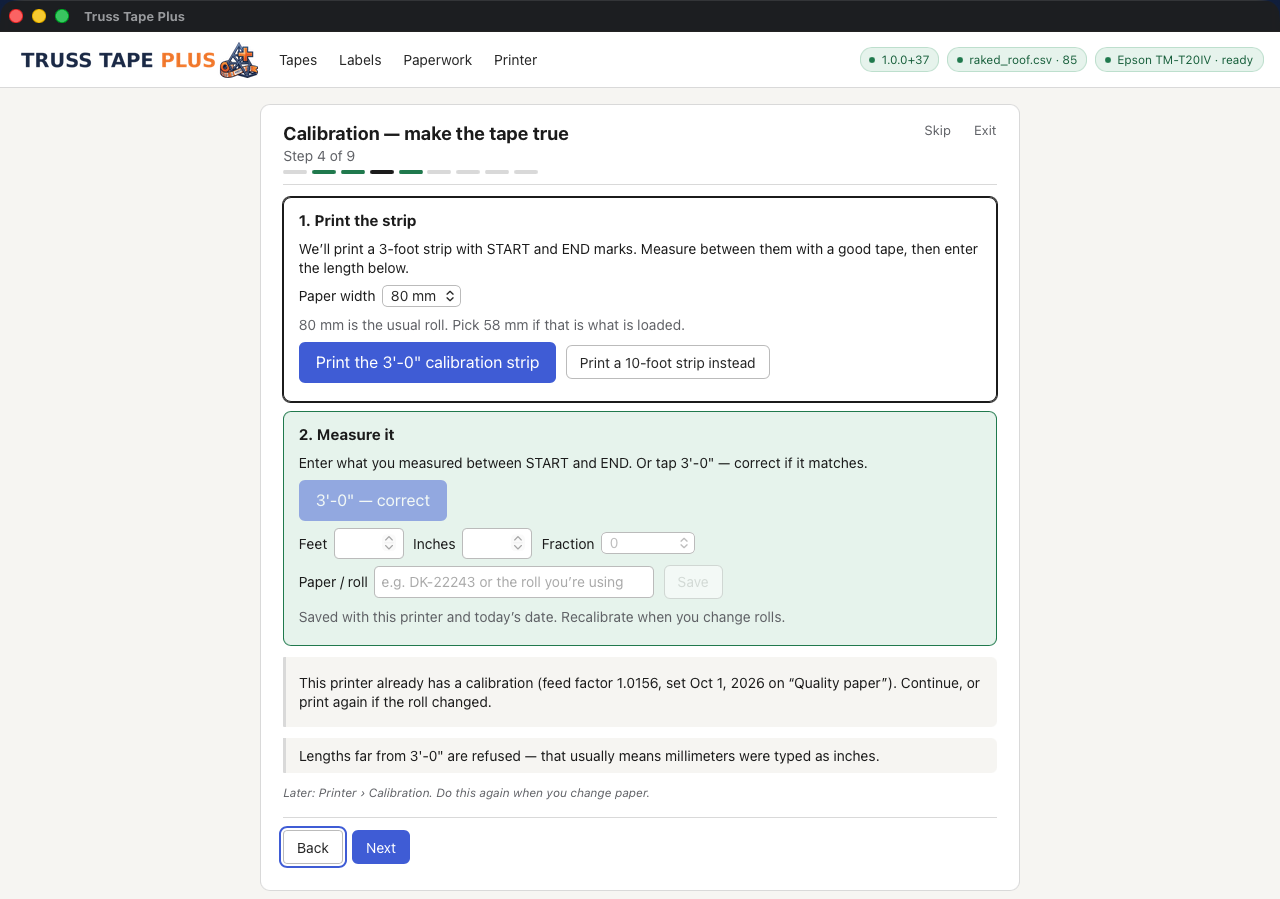
More detail: Calibrate.
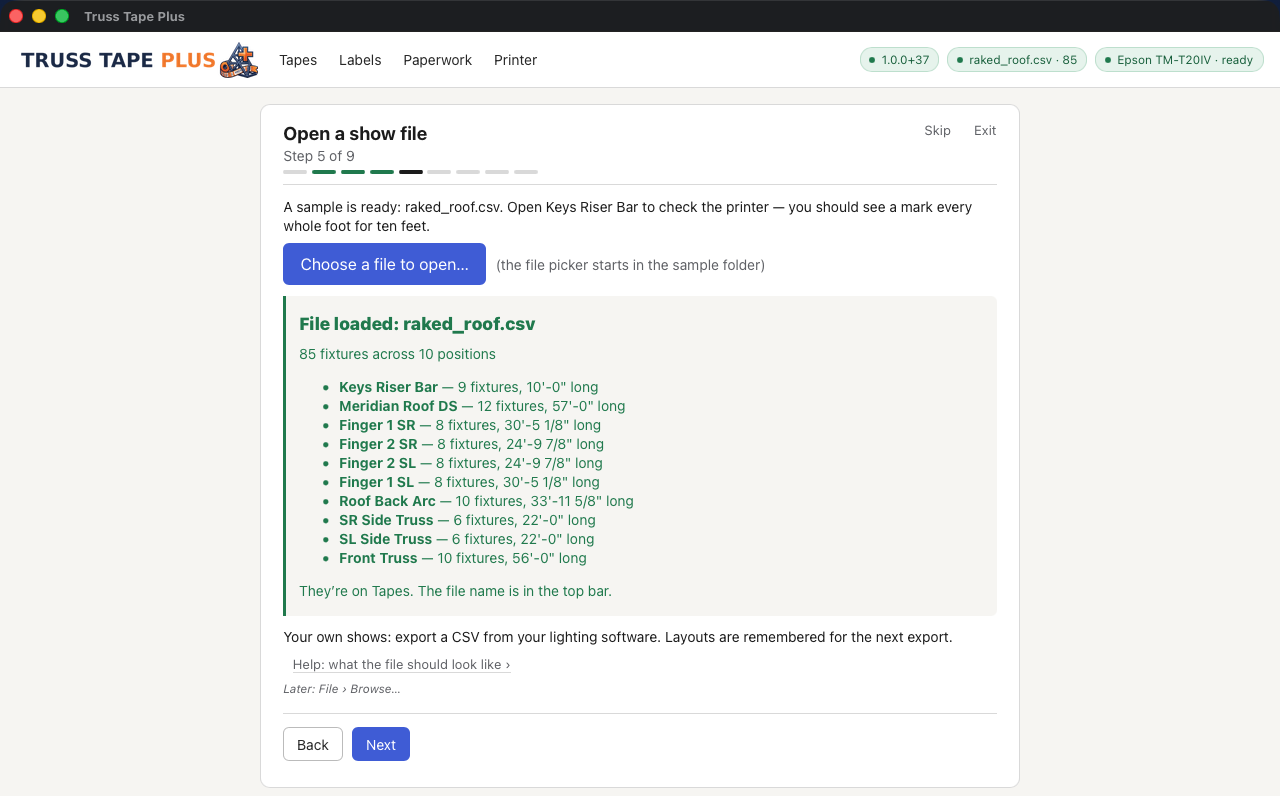
5. Open a show file
A sample is ready. Press Choose a file to open… (or keep the sample already loaded) so positions appear on Tapes.
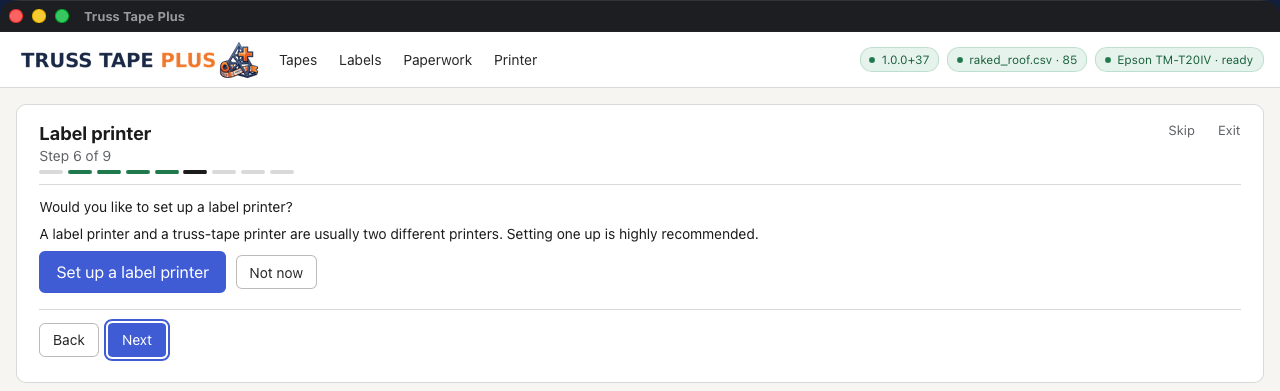
6. Label printer
Optional. Press Set up a label printer, pick one, print the measurement label, and save if it matches.
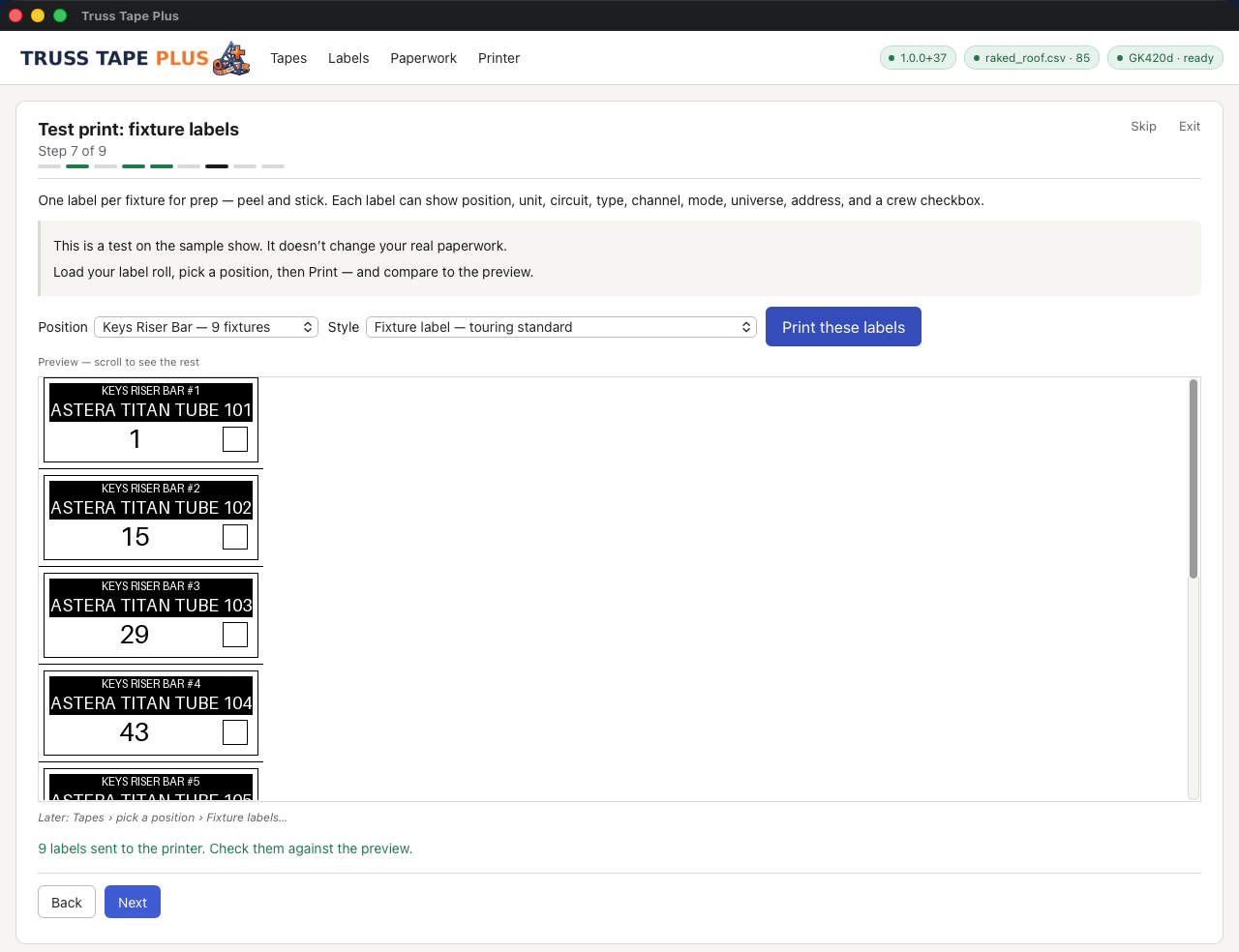
7. Test print: fixture labels
Pick a position and press Print these labels. Compare the print to the preview.
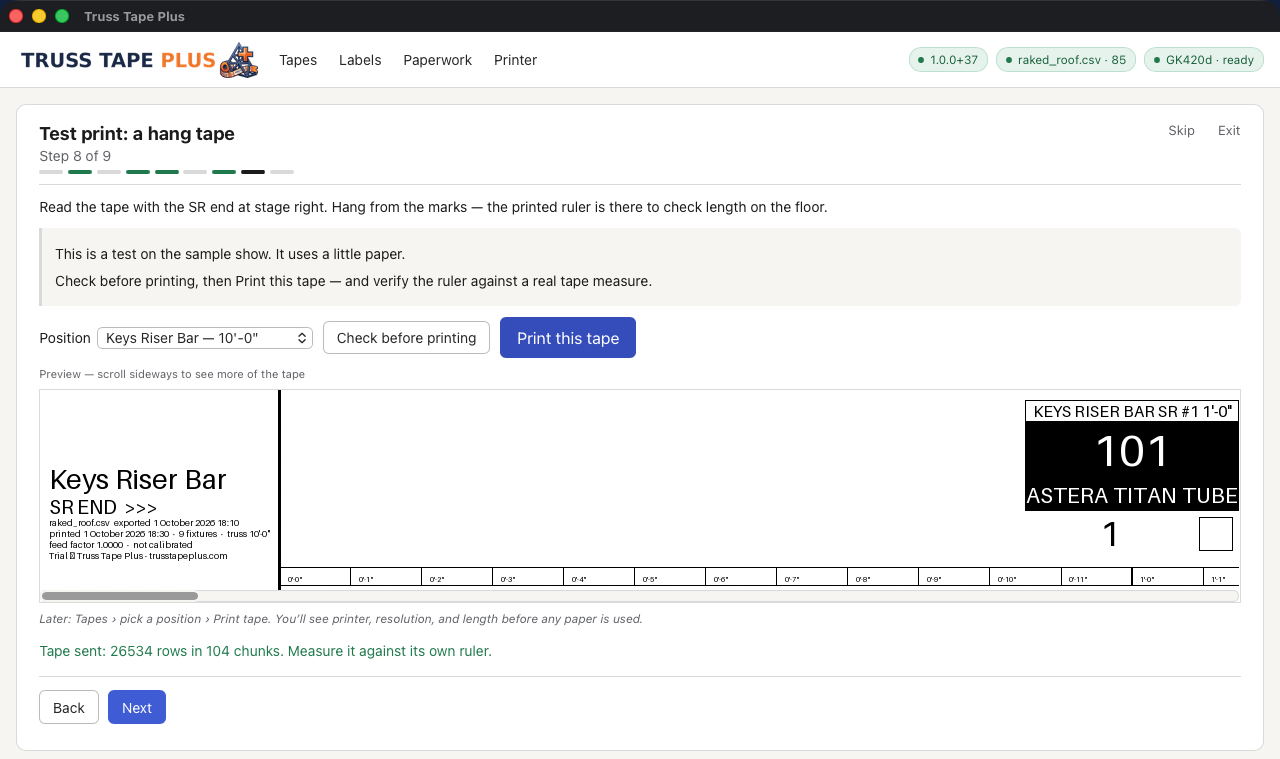
8. Test print: a hang tape
Pick a position and press Print this tape. Check the printed ruler against a real tape measure.
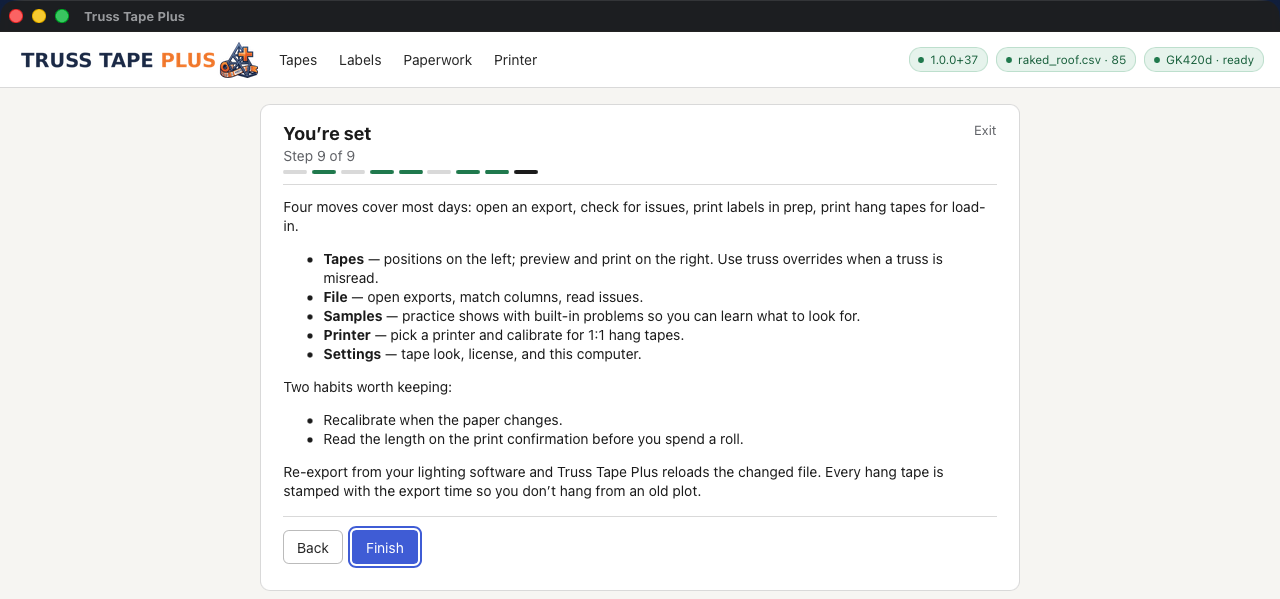
9. You’re set
Everyday work lives on Tapes · Labels · Paperwork · Printer. File, Tools, and Help are menus (Samples and Get started are under File; Settings… is under the app menu on Mac, File → Settings… on Windows). Press Finish.
TIP
If the screenshot still shows older everyday-page names, ignore that chrome — the steps above match the current app. Recapture later if you need a fresh shot.
Use Back and Next at the bottom of setup. The hang list works before a printer is connected. Printing does not.